How to Update Among Us

December 9, 2025
Keeping your favorite games updated is super important, and Among Us is no different. Updates bring new roles, cool maps, and fix annoying bugs that can mess up your game. If you've ever tried to join a game with friends and couldn't, a quick update might be all you need to get back in on the action.
Updating Among Us usually happens automatically on most devices, but sometimes you need to give it a little nudge. The process is pretty easy no matter if you play on your phone, computer, or a console.
How to Update Among Us
Here's how to make sure your game is always ready for the next space adventure, whether you're a Crewmate or a sneaky Impostor.
On Your PC (Steam)
If you play Among Us on your computer through Steam, it's usually set to update by itself. But if it doesn't, here's what to do:
1. Open Steam and click on 'Library' at the top left.
2. Find Among Us in your list of games.
3. Right-click on Among Us and choose 'Properties'.
4. Go to the 'Updates' tab and make sure 'Always keep this game updated' is selected.
5. If there's an update ready, you might see a big 'Update' button. Click it!
Sometimes, Steam can be a bit glitchy. I remember one time, my game just wouldn't update, and I kept getting an error message. I ended up right-clicking Among Us, going to 'Properties,' then 'Local Files,' and clicking 'Verify Integrity of Game Files.' After it checked everything, the update finally kicked in, and I was back to being suspicious in no time. If you're having trouble connecting to online games, an outdated version could be the problem. You might find some helpful tips in our post, Why Won't Among Us Let Me Play Online?.
On Your Phone (Android or iPhone)
Mobile updates are super simple!
1. For Android: Open the Google Play Store. Tap on your profile picture (top right) and select 'Manage apps & devices'. You'll see 'Updates available' - check if Among Us is there and tap 'Update'. You can also just search for Among Us in the store, and if an update is out, you'll see an 'Update' button instead of 'Play'.
2. For iPhone: Open the Apple App Store. Tap your profile icon (top right) and scroll down to see any pending updates. If Among Us is listed, tap 'Update'.
Mobile updates should often pop up as a notification or happen in the background if you have automatic updates turned on.
On Nintendo Switch
The Nintendo Switch usually updates games automatically if you're connected to the internet. But if you need to manually update:
1. Go to your Switch Home screen and highlight Among Us.
2. Press the '+' or '-' button on your Joy-Con.
3. A menu will appear. Select 'Software Update' and then 'Via the Internet'.
4. Your Switch will check for and download any new updates.
On PlayStation (PS4/PS5) and Xbox
Consoles like PlayStation and Xbox are usually good at updating games on their own in the background. But if you need to check:
1. PlayStation: Find Among Us on your home screen. Press the 'Options' button on your controller and select 'Check for Update'.
2. Xbox: Press the Xbox button on your controller to open the guide. Go to 'Profile & system', then 'Settings', then 'System', and finally 'Updates'. If Among Us is on the list, select it to start the update.
Why Keep Among Us Updated?
Keeping your game updated isn't just about bug fixes, though those are important too! Recent updates have brought in exciting new roles like the Detective and Viper, and even new maps like The Fungle. Updates can also improve the game's performance and add cool new features like a friending system. It's like getting a whole new game sometimes!
What If My Game Still Won't Update?
If you've tried all these steps and Among Us still isn't updating, don't worry. Sometimes a simple restart of your device can fix it. Make sure your internet connection is strong. If all else fails, you might need to uninstall and then reinstall the game. This usually makes sure you get the very latest version. One time, my friend had an issue where their mobile game just wouldn't update. After trying everything, they just deleted the app and re-downloaded it from the app store. It worked like a charm, and they didn't lose any game progress because it was linked to their account.
By keeping Among Us updated, you ensure you get the best and most fun experience, with all the latest content and smoother gameplay.
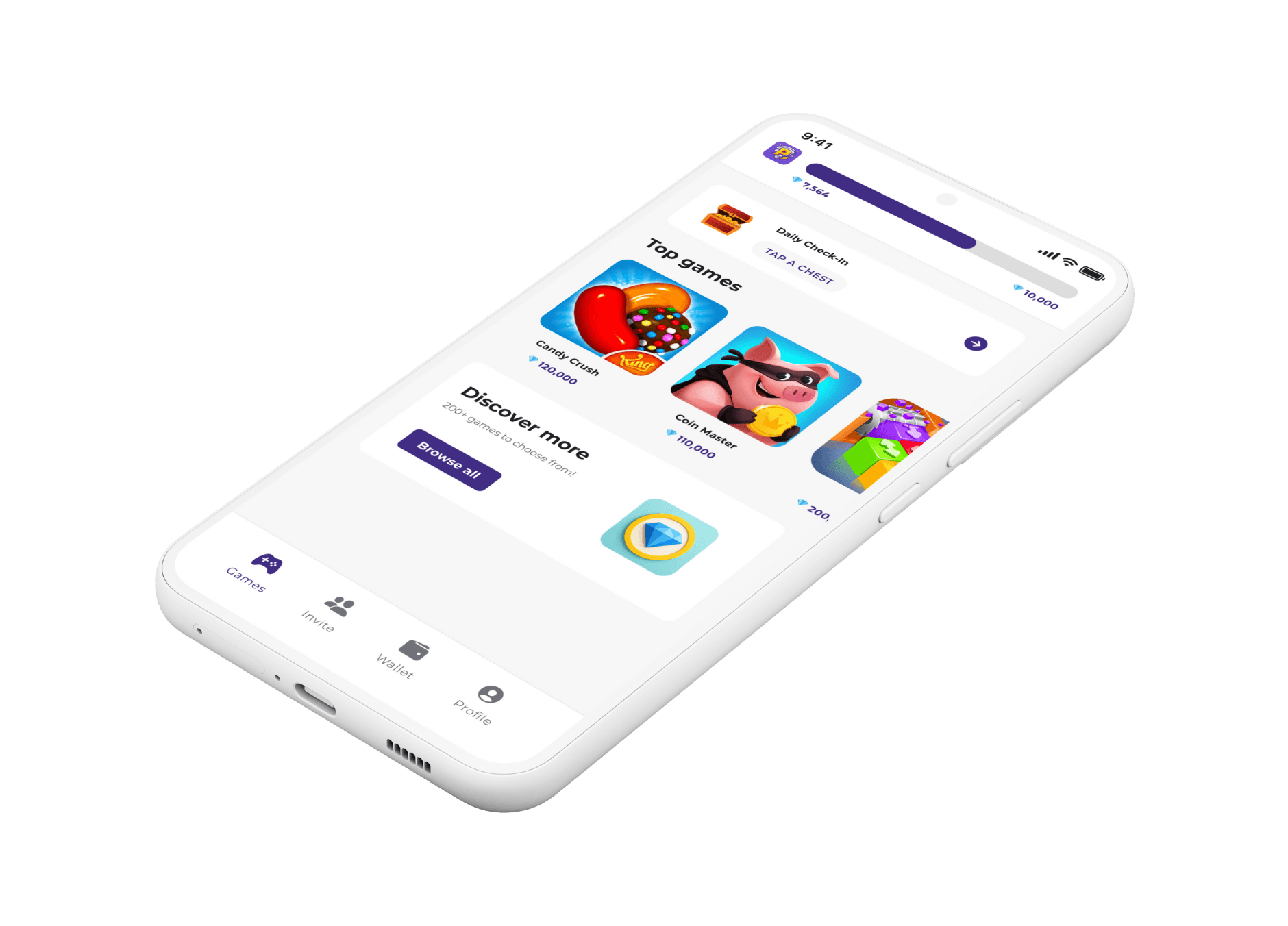
If you enjoy playing Among Us and want to grab some cool in-game cosmetics or pets, consider using Playstorm! You can earn rewards by playing free games on the Playstorm app, and then redeem them for Apple or Google Play gift cards. These gift cards can be used to make in-app purchases in Among Us, giving you access to all the fun extras the game offers.